

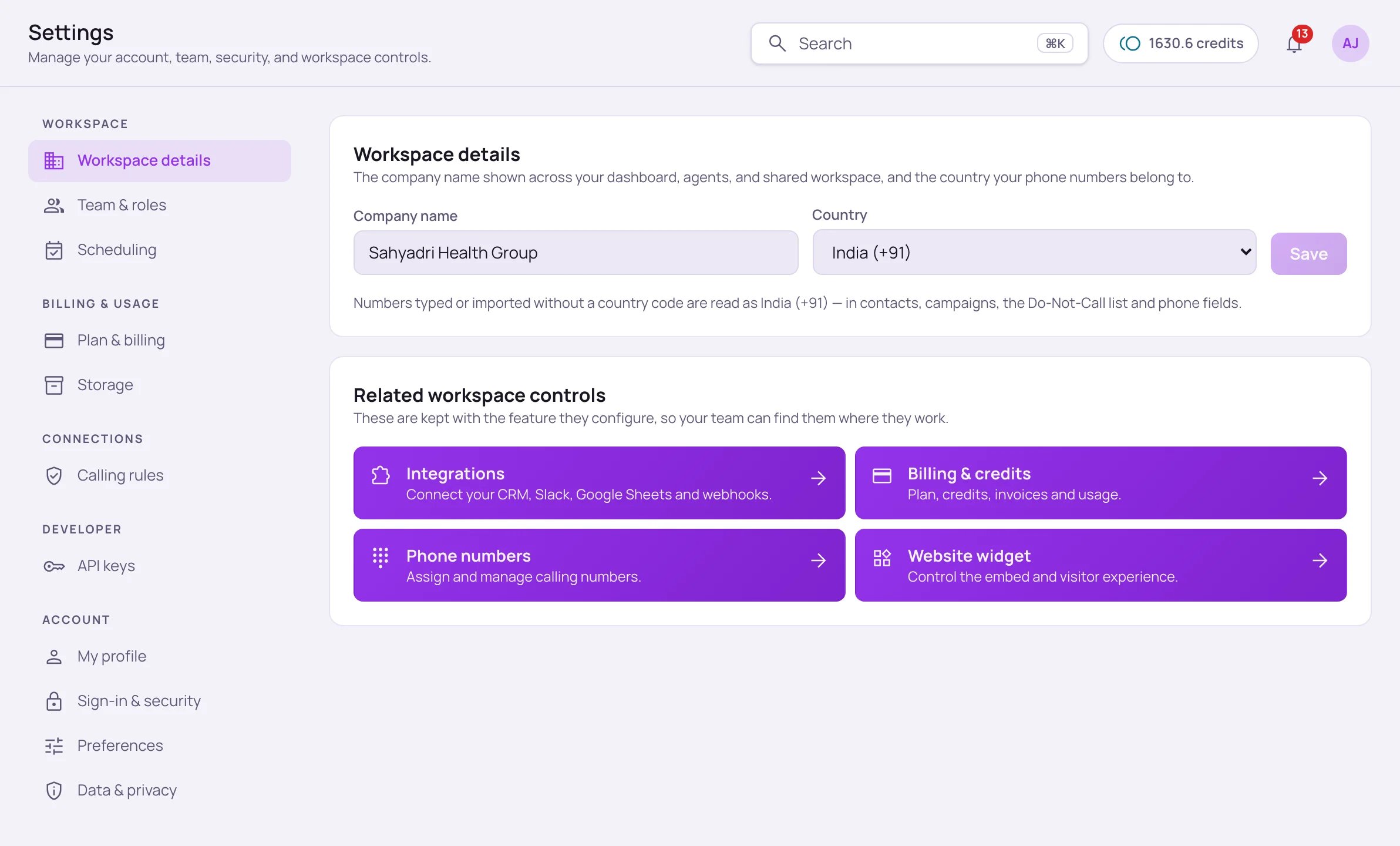
Settings opens on Workspace details. The section list on the left groups every tab.
Team & roles
Invite teammates and control what they can do. Click + Invite member, enter their name and email, and pick a role (Admin, Member or Viewer). They get an invite link by email.
Admins and the owner can change a teammate’s role, Remove someone, or revoke a pending invite.
Scheduling
Set the business hours your agent checks and books appointments against — one set for your whole workspace. For each day you choose open hours (or mark it closed), plus the Slot length, the Timezone, and any Blackout dates when nothing can be booked.Plan & billing
Under Billing & usage → Plan & billing you see your remaining credits, your current plan, and the available plans. See Billing for what each plan includes.Calling rules
Your calling window, consent, recording, retention and Do-Not-Call settings live under Settings → Calling rules. See Compliance for what each one does.Notifications
Under Account → Preferences:- Notifications — emails you receive personally. Choose whether you get Qualified leads, Delivery issues (when a connected integration stops receiving leads), and Low credits emails.
- In the dashboard — what the bell at the top shows you:
- New calls — website widget, web and inbound phone calls as they come in.
- New bookings — when your agent books an appointment.
- Play a sound — a soft chime when something new arrives while the dashboard is open.
- Pop-up on this computer — a desktop notification when something arrives while you’re in another tab or app. Your browser asks for permission the first time. Click Send a test to see how it looks.
Sign-in & security
Two-step login
Two-step login adds a second check after your password (or Google/GitHub sign-in): a 6-digit code from an authenticator app such as Google Authenticator, Microsoft Authenticator or 1Password. A stolen password alone can’t get in.
The Two-step login card at the top of Settings → Sign-in & security, before it is turned on.
1
Turn it on
Go to Settings → Sign-in & security and click Turn on under Two-step login.
2
Scan the code
Scan the QR code with your authenticator app, then type the 6-digit code it shows.
3
Save your recovery codes
You’ll be shown a set of recovery codes. Download or copy them somewhere safe, then click I’ve saved them. Each code works once, and lets you sign in if you lose your phone.
Data & privacy
- Download your data — get a portable copy of your workspace’s information. Passwords, API keys, access tokens and stored integration credentials are never included.
- Delete my account — request permanent removal of your account. Nothing is deleted immediately: we verify the request and email you before processing it.
- Copilot actions — a log of every change Artha Copilot proposed in your workspace, which teammate asked for it and when, and whether it was done, cancelled, failed or expired. Nothing runs until a teammate presses Confirm.