

Connecting an integration needs the Growth or Scale plan. See Billing.
Available integrations
Go to Integrations in the sidebar. Each card opens that integration’s own page.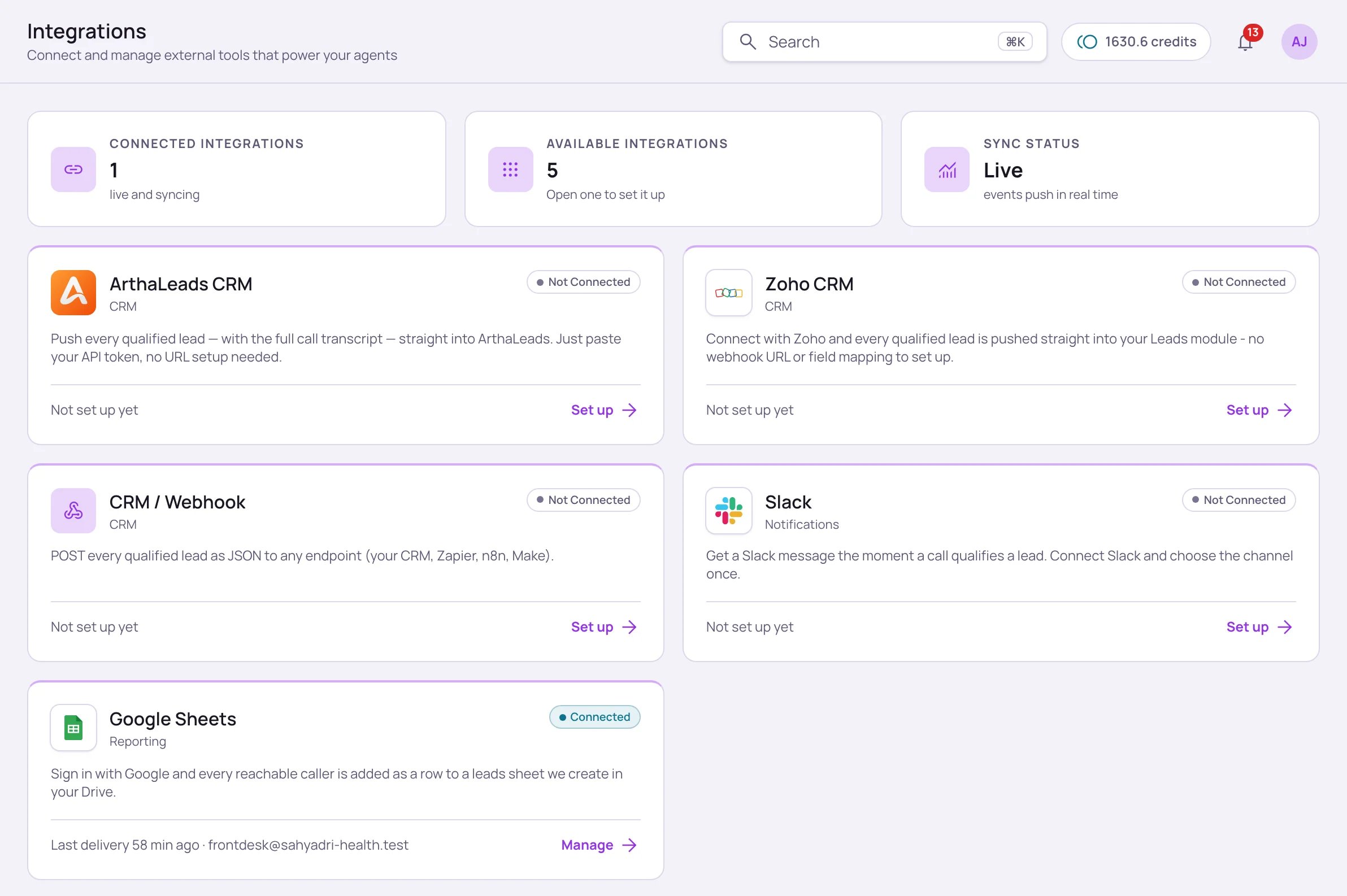
The Integrations page with Google Sheets connected. The Instant Lead Follow-up card sits below these cards.
ArthaLeads CRM
Push every qualified lead — with the full call transcript — straight into ArthaLeads. Paste your API token; no URL setup needed.
Zoho CRM
Click Connect with Zoho and every qualified lead goes into your Zoho Leads module — no webhook URL or field mapping to set up.
CRM / Webhook
POST every qualified lead as JSON to any endpoint — your own CRM, Zapier, n8n, or Make.
Slack
Get a Slack message the moment a call qualifies a lead. Connect Slack and choose the channel once.
Google Sheets
Sign in with Google and every reachable caller is added as a row to a leads sheet created in your Drive.
Instant Lead Follow-up
The other direction: send a new lead in, and your agent calls it within about 15–30 seconds.
Each integration’s page
Every integration page has the same layout, with four tabs: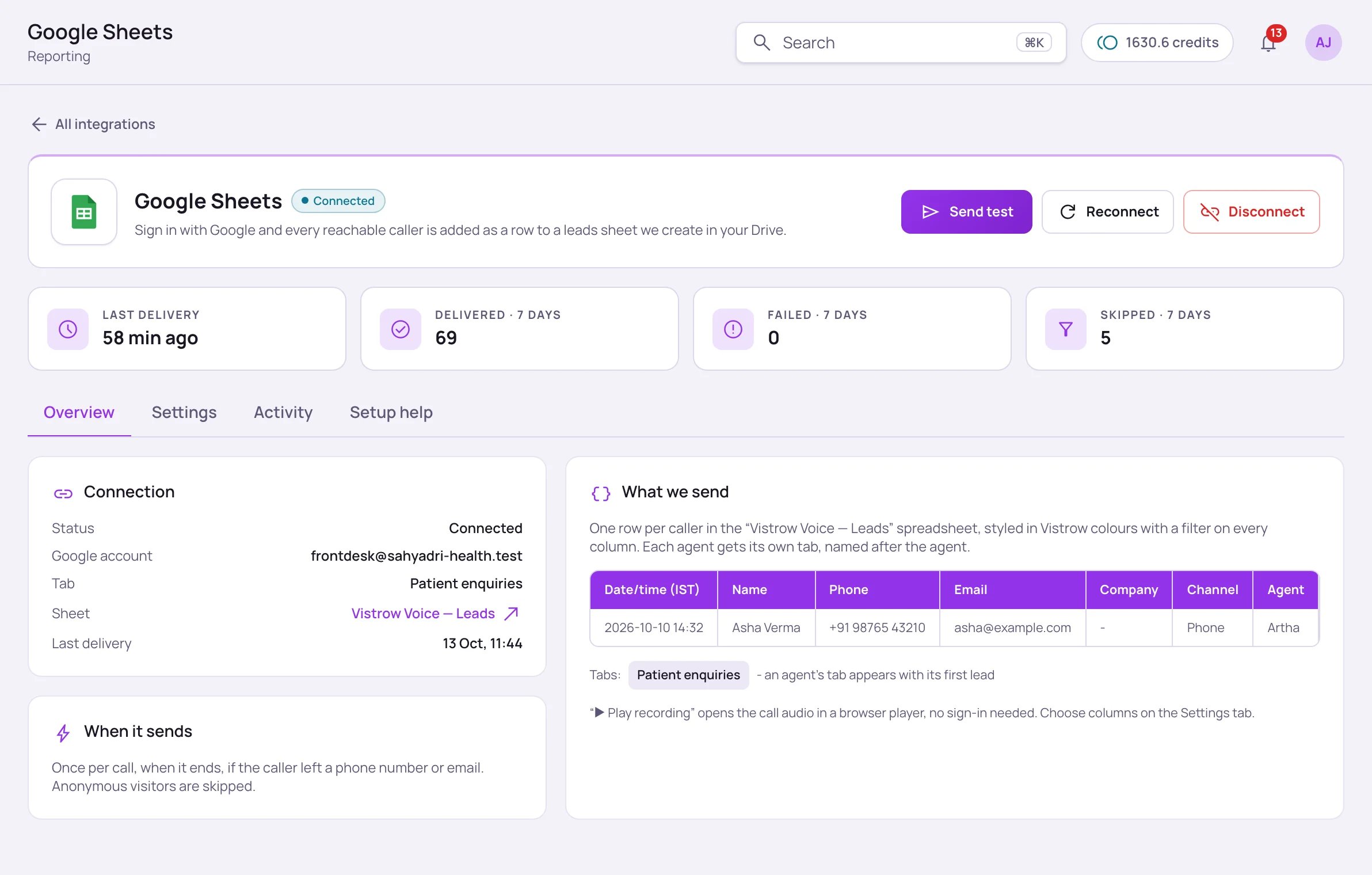
The Google Sheets page on the Overview tab: last delivery, 7-day counts, the connection, and a sample of the row it adds.
- Connect — connect the integration (for example Connect with Zoho, or sign in with Google).
- Send test — sends a sample lead so you can check it arrives.
- Reconnect — re-authorise or pick a different destination, for example a new Slack channel.
- Disconnect — stop sending. You’re asked to confirm first.
Choose what gets sent
On the Settings tab:- What gets sent — pick the moments that send: End of call, Lead details during the call, Appointment booked, and Callback requested.
- Fields to send (Columns in your sheet for Google Sheets) — for CRM / Webhook, Slack and Google Sheets, choose which fields go out, such as name, phone, email, details and summary, transcript, and a recording link. Anything you leave out is never sent.
- Agents that send here — turn an agent off to keep its calls out of this integration. Applies from its next call.
Google Sheets
1
Connect
Open Integrations → Google Sheets and connect with your Google account.
2
Find your sheet
Vistrow Voice creates a spreadsheet called Vistrow Voice — Leads in your Google Drive. Each agent gets its own tab, named after the agent, with one row per caller.
3
Test it
Click Send test — a row marked “TEST — safe to delete” appears.
ArthaLeads: call new leads automatically
On the ArthaLeads page’s Settings tab, the ArthaLeads leads and calls section lets your agent call new ArthaLeads leads as soon as they arrive. Choose which lead sources to call, add a rule for each website page or project, and pick the agent and the number to call from. Then click Save call setup. Only sources you turn on, with a matching page or project rule, are called. Do-Not-Call and calling-window rules still apply.How delivery works
After a call, the agent sends its result to every connected integration (or only the ones chosen in that agent’s CRM routing), in addition to any webhook URL set directly on the agent under After the call → Webhook. Every lead carries the agent’s 10-digit Agent ID asagent_id.